



Office chairs with adjustable lumbar support let you change how the backrest meets your lower back. Check what moves, where it contacts you and whether the seat lets you use that support comfortably.
We recommend choosing adjustments you can comfortably reach, use and return to throughout your workday.

Adjustable Lumbar Support: A Quick Overview
| What to check | Why it matters | What to confirm |
|---|---|---|
| Adjustment direction | Different controls change different aspects of contact | Height, depth or support intensity, listed separately |
| Adjustment range | A movable pad still needs to reach your lower back | Travel and lowest and highest contact positions |
| Support mechanism | Manual settings differ from movement-responsive designs | What moves automatically and what you set yourself |
| Contact shape | Pad size and contour affect the sitting experience | Comfortable contact without an unwanted pressure point |
| Seat fit | Seat dimensions determine whether you can reach the backrest | Usable depth, seat height and foot support |
| Operation | Controls should work during everyday use | Control location, adjustment method and setting retention |
| Purchase terms | Useful support includes practical ownership | Relevant warranty coverage, parts availability and return conditions |
What Does Adjustable Lumbar Support Mean?
Adjustable lumbar support lets you change some aspect of the support near your lower back. However, the word “adjustable” does not tell you which movements a chair offers.
Height adjustment moves the contact area up and down. Depth adjustment changes how far the support projects toward your body.
A separate intensity control may change resistance or firmness. It does not necessarily move the pad through the same distance as a depth control.
For an office chair with adjustable back support, ask the seller to identify each function separately. A chair may provide height adjustment without independent depth or intensity controls.

Check whether the pad or the whole backrest moves
Some chairs raise the entire backrest, while others move a lumbar pad independently. UCLA's chair-selection guidance distinguishes these two arrangements.
That difference matters when comparing photographs and adjustment demonstrations. Moving the whole backrest also changes where its upper contour meets your body.
An independent pad changes lower-back contact while the upper backrest stays in place. Compare both arrangements for comfortable support and freedom to move your upper body.
Fixed vs. Adjustable vs. Dynamic Lumbar Support
These terms describe different design features, and some chairs combine them. Compare the actual mechanism rather than treating the names as comfort rankings.
| Support type | How it works | What to check |
|---|---|---|
| Fixed | The backrest has a built-in lower-back contour | Whether its position and projection suit you |
| Manually adjustable | You set the pad position or another support control | Available directions, range, control access and setting retention |
| Dynamic | A designed support component responds to movement or load | What responds, how it moves and whether manual settings also exist |
Fixed support can fit, but offers fewer ways to change contact
A fixed contour may suit your seated proportions. However, it gives you fewer ways to correct a mismatch at the lower back.
Check it while sitting naturally against the backrest. Do not assume that a large visible curve provides more useful support.
Manual adjustment gives you a chosen setting
With a height-adjustable lumbar support office chair, you move the support to a preferred level. Other models may also offer depth or intensity adjustment.
After adjusting the support, check that it stays in your chosen position during normal use.
Dynamic support needs a clear explanation
Dynamic lumbar support responds to movement or load through a designed mechanism. Check which component moves and how it behaves when you sit upright or recline.
A dynamic lumbar support office chair may still include manual settings. Compare both features, and test whether the movement feels useful during your normal tasks.
How to Check Lumbar Support Fit
Start with your feet supported and your body comfortably against the backrest. Then locate the contact area near the inward curve of your lower back.
The OHCOW chair guide recommends a support shape that accommodates the user without localized pressure points. Use comfortable contact as your check, rather than searching for the strongest possible push.
Check position before changing intensity
If contact feels too high, try lowering the support within its available range. If it sits below your lower-back curve, try raising it.
These are starting adjustments, so judge the result through actual contact. A belt line can provide a rough reference, but clothing and body proportions vary.
A suitable lumbar support office chair should let you use the backrest without forcing an exaggerated arch. You should not need to twist or perch forward to escape the pad.
If the support feels too strong
Recheck pad height, seat depth and backrest position first. Moving the contact point may feel more comfortable even when the pad’s firmness stays the same.
If the model offers an intensity or depth control, adjust that function according to its instructions. If it does not, raising or lowering the pad cannot create an independent firmness setting.
If you cannot find comfortable contact, compare a different contour or adjustment range. More prominent support does not automatically provide better fit.
Test more than a brief lean-back
Try a paragraph of typing, some mouse work and your normal reading position. Then compare a supported recline using the chair's instructions.

Notice whether the support remains comfortable when you return upright. Do not judge a reclining office chair with lumbar support only during a short rest.
For everyday comparison, change one setting at a time. Record what changed, because adjusting several controls together makes the result harder to understand.
Check whether you can restore a useful setting
Once you find comfortable contact, note the pad position or another visible reference. Move it slightly, then try returning to the same setting.
This simple check can help when different people share a home office. It also reveals whether the control provides a practical way to recover your preferred position.
A photo or brief setup note can help you restore your preferred position, even without numbered settings.
Check Seat Depth and Height Alongside Lumbar Support
A supportive ergonomic office chair brings seat depth, height and backrest contact together. Set the seat first, then adjust the lumbar support around your working position.
Seat depth determines whether you can sit back
If the seat crowds your knees, you may slide forward and lose lumbar contact. OHCOW describes this connection between excessive seat depth and reduced use of lower-back support.
Shorten the seat where the chair allows, then reassess both thigh support and backrest contact. Leave comfortable room behind your knees.
For office chairs with adjustable seat depth, compare the minimum and maximum usable dimensions. Sliding travel alone does not tell you whether the shallowest position suits you.
Seat height affects your supported position
Set the height so your feet have firm support. If desk access requires a higher setting, check whether a suitable footrest helps support your feet.
Then return to the backrest and reassess lumbar contact. A change in sitting position can change how the same pad meets your body.
Keep desk access in the fit check
You may lose backrest contact because the keyboard or mouse sits beyond comfortable reach. Check their placement and whether the armrests block your approach to the desk.
For an office chair for long hours, test the complete arrangement during your usual tasks. Keep room for position changes rather than trying to maintain one pose throughout the day.
Adjustable Lumbar Support on COLAMY ATLAS and ATLAS-01
Both models provide manual lumbar height adjustment behind the backrest. Their supplied instructions describe raising or lowering the support using equal pressure on both ends.
Our ergonomic chairs collection lets you compare this feature alongside seat, armrest and headrest adjustments.
| Feature | COLAMY ATLAS | COLAMY ATLAS-01 |
|---|---|---|
| Confirmed lumbar adjustment | Manual height adjustment | Manual height adjustment |
| Operation location | Behind the backrest | Behind the backrest |
| Adjustment method | Apply equal pressure at both ends; raise or lower | Apply equal pressure at both ends; raise or lower |
| Numeric lumbar travel | Request the measured range | Request the measured range |
| Back and seat | Mesh back and foam cushion | Mesh back and foam cushion |
| Other adjustable features | Seat depth, seat height, headrest and 4D armrests | Seat depth, seat height, headrest and 4D armrests |
| Base | Aluminum alloy | Reinforced nylon |
Both models offer manual lumbar height adjustment with a mesh back and cushioned seat. Choose between their base materials, colors, other adjustment ranges and current prices.
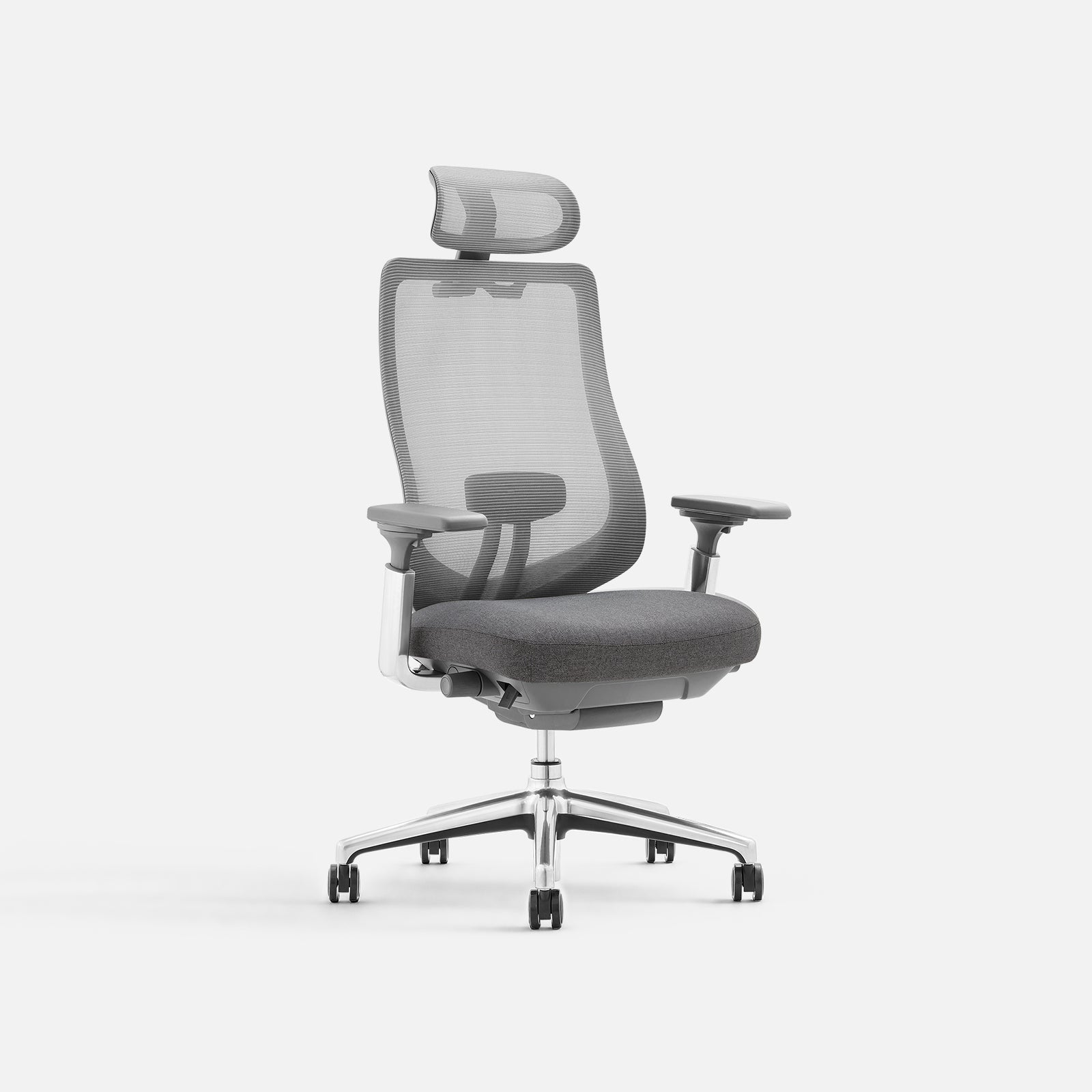
Manual lumbar height adjustment
COLAMY ATLAS
Mesh back, cushioned seat and an aluminum alloy base.
- Raise or lower the lumbar support behind the backrest
- Adjustable seat depth and headrest
- 4D armrests and four recline locking positions

Manual lumbar height adjustment
COLAMY ATLAS-01
Mesh back, cushioned seat and a reinforced nylon base.
- Raise or lower the lumbar support behind the backrest
- Adjustable seat depth and headrest
- 4D armrests and four recline locking positions
How to adjust the lumbar support

Find the lumbar component behind the backrest.

Use equal pressure at both ends to raise or lower the support.
Adjustment reference
- Set seat height and depth so you can sit comfortably against the backrest.
- Locate the lumbar support behind the backrest.
- Follow the supplied instructions and apply equal pressure to both ends.
- Raise or lower it within the adjustment track.
- Return to your normal sitting position and check the contact.
- Repeat in small steps, then test your usual desk tasks.
Do not force the support beyond its adjustment track. If you cannot operate it comfortably, check the instructions before changing your position to reach it.
Compare useful features within your budget
Start with the seat dimensions and lumbar adjustment you need. Then compare the armrests, recline controls and materials that matter in daily use.
Spend on the adjustment range, seat fit and materials you expect to use and enjoy every day.
Compare warranty coverage and replacement-part availability. Review return eligibility, including assembly, usage and packaging requirements, before setting up the chair.
When using a mesh office chair buying guide, compare demonstrated movements and dimensions alongside feature names.
Final Thoughts
Choose lumbar support that reaches a comfortable position while you use the seat and backrest naturally. Confirm its adjustment directions, then check the complete chair at your desk.
At COLAMY, we believe thoughtful adjustments should help your home workspace fit your everyday routine.
Find Support That Suits Your Workday
Compare practical adjustments and chair dimensions across our collection.
Adjustable Lumbar Support Office Chair FAQs
What does adjustable lumbar support mean?
It means you can change some aspect of lower-back support. Check whether the model adjusts height, depth, intensity or a combination of these functions.
Is dynamic lumbar support better than manual adjustment?
Neither mechanism suits everyone. Manual controls set a chosen position, while dynamic designs respond through a specified movement or load-sensitive mechanism. Compare actual fit and control behavior before choosing.
How do I know if lumbar support sits too high or too low?
Check where it meets your lower back while you sit comfortably against the backrest. Adjust the height in small steps and compare contact without forcing your posture.
Can I adjust lumbar depth on ATLAS and ATLAS-01?
Both models provide manual lumbar height adjustment. The documented control raises or lowers the support; it does not provide a separate depth or intensity setting.
Why can I not feel the lumbar support while typing?
Seat depth or keyboard and mouse placement may keep you away from the backrest. Check these first, then adjust the lumbar support for comfortable contact.


